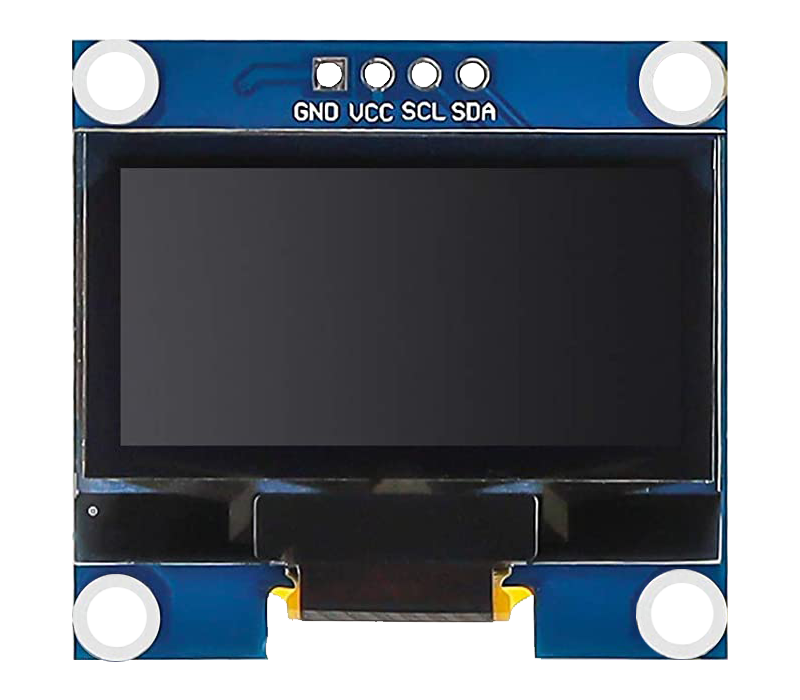
0.96 Inch OLED Display
Generic
SKU: SPKDIS002 · Category: Displays
RWF 5,500
Out of stock
This small 0.96-inch OLED display gives your project a sharp, high-contrast screen for text, numbers, icons and simple graphics. Each of its 128 × 64 pixels produces its own light, so there is no backlight: blacks are truly black, the display is easy to read from almost any angle, and it uses very little power.
It connects with just four wires using the I²C bus and is driven by the popular SSD1306 controller, which is supported by well-known Arduino libraries. Use it to show sensor readings, Wi-Fi status, menus or a small clock on Arduino, ESP8266 and ESP32 projects.
Features
- 128 × 64 pixel monochrome OLED
- No backlight needed — high contrast and wide viewing angle
- Only 4 wires (I²C)
- Works with both 3.3 V and 5 V boards
- Supported by the Adafruit SSD1306 and U8g2 libraries
- Very low power consumption
Specifications
- Size: 0.96 inch diagonal
- Resolution: 128 × 64 pixels
- Driver IC: SSD1306
- Interface: I²C
- Supply voltage: 3.3 V – 5 V
- Viewing angle: over 160°
- Current: about 20 mA typical (depends on how many pixels are lit)
OLED Pin Description
- GND — ground
- VCC — 3.3 V or 5 V
- SCL — I²C clock
- SDA — I²C data
Time to put your OLED to work
- Wire it up. On Arduino UNO/Nano: SDA → A4, SCL → A5, ESP8266 NodeMCU: SDA → D2, SCL → D1, ESP32: SDA → GPIO21, SCL → GPIO22.
- Check the order of the pins printed on your display — some versions start with VCC instead of GND.
- In the Arduino IDE, open Library Manager, search for Adafruit SSD1306 and install it, accepting the extra libraries it asks for (Adafruit GFX).
- Upload the sketch below. If nothing appears, change the address from 0x3C to 0x3D.
#include <Wire.h>
#include <Adafruit_GFX.h>
#include <Adafruit_SSD1306.h>

Adafruit_SSD1306 display(128, 64, &Wire, -1);

void setup() {
  if (!display.begin(SSD1306_SWITCHCAPVCC, 0x3C)) {
    for (;;);   // display not found — check wiring and address
  }

  display.clearDisplay();
  display.setTextColor(SSD1306_WHITE);
  display.setTextSize(2);
  display.setCursor(0, 0);
  display.println("Sparkit");
  display.setTextSize(1);
  display.setCursor(0, 30);
  display.println("OLED is working!");
  display.display();
}

void loop() {
}